
Setup Guide
How to Install eSIM
Choose your device and follow the setup steps exactly.
iPhone Installation
Install from your email, by scanning QR, or by manual setup.
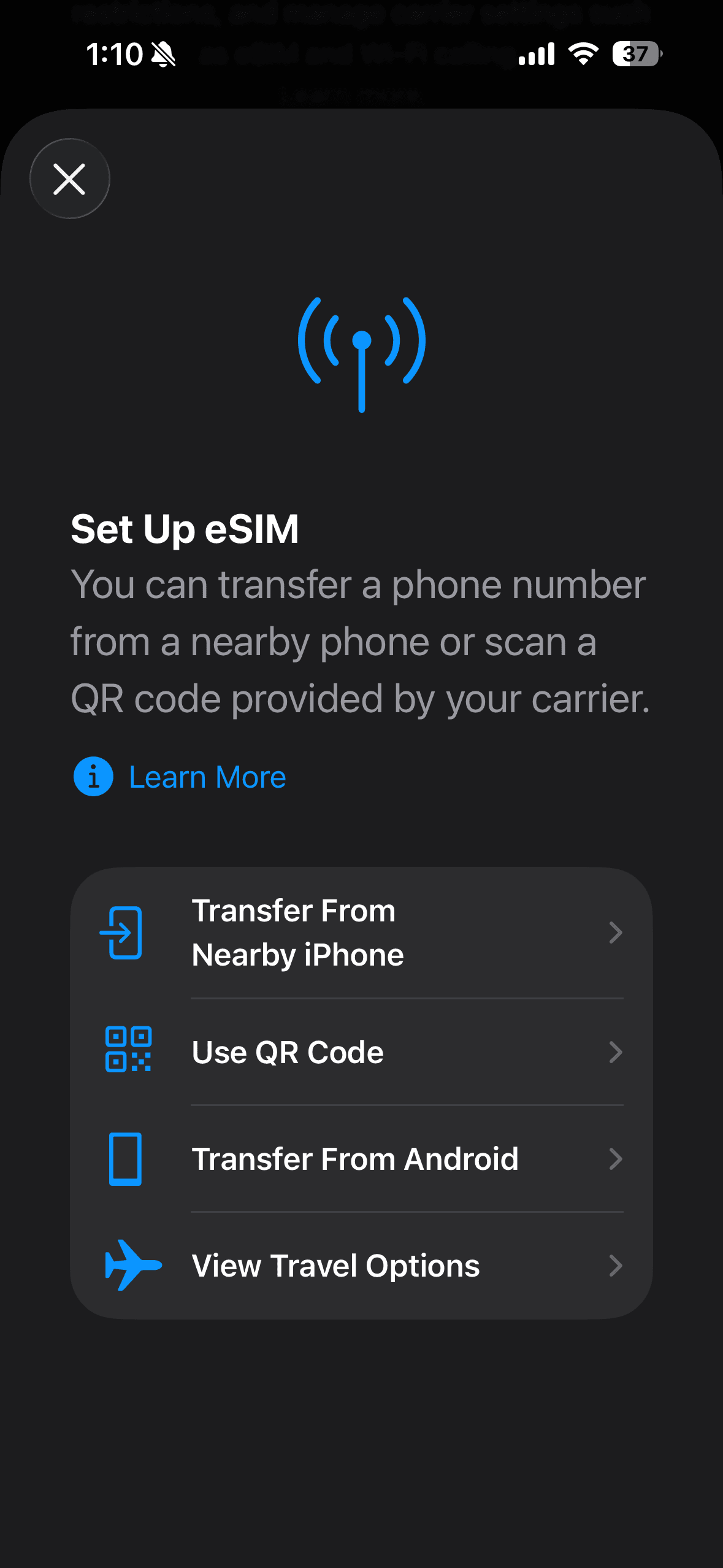
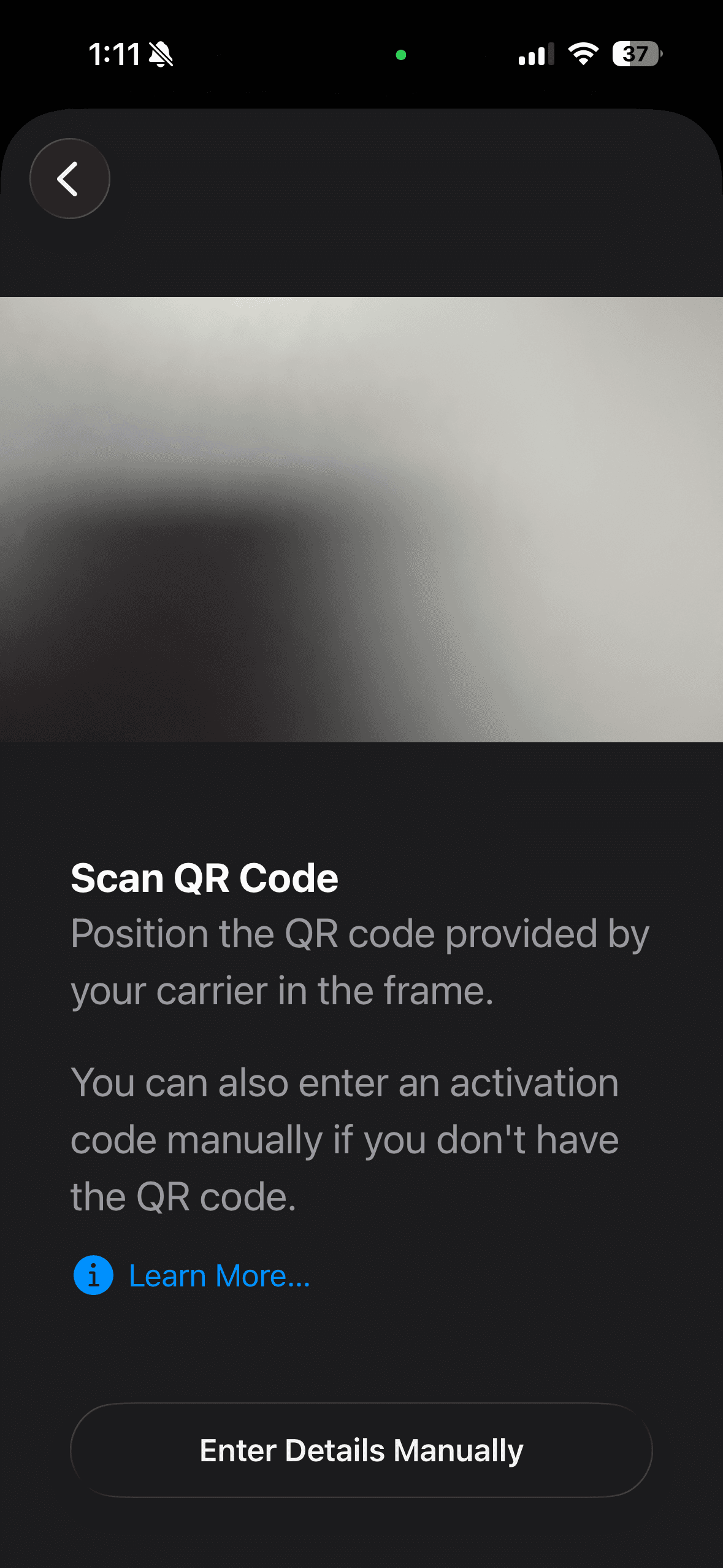
iPhone — Option 1: Tap QR Code in Email
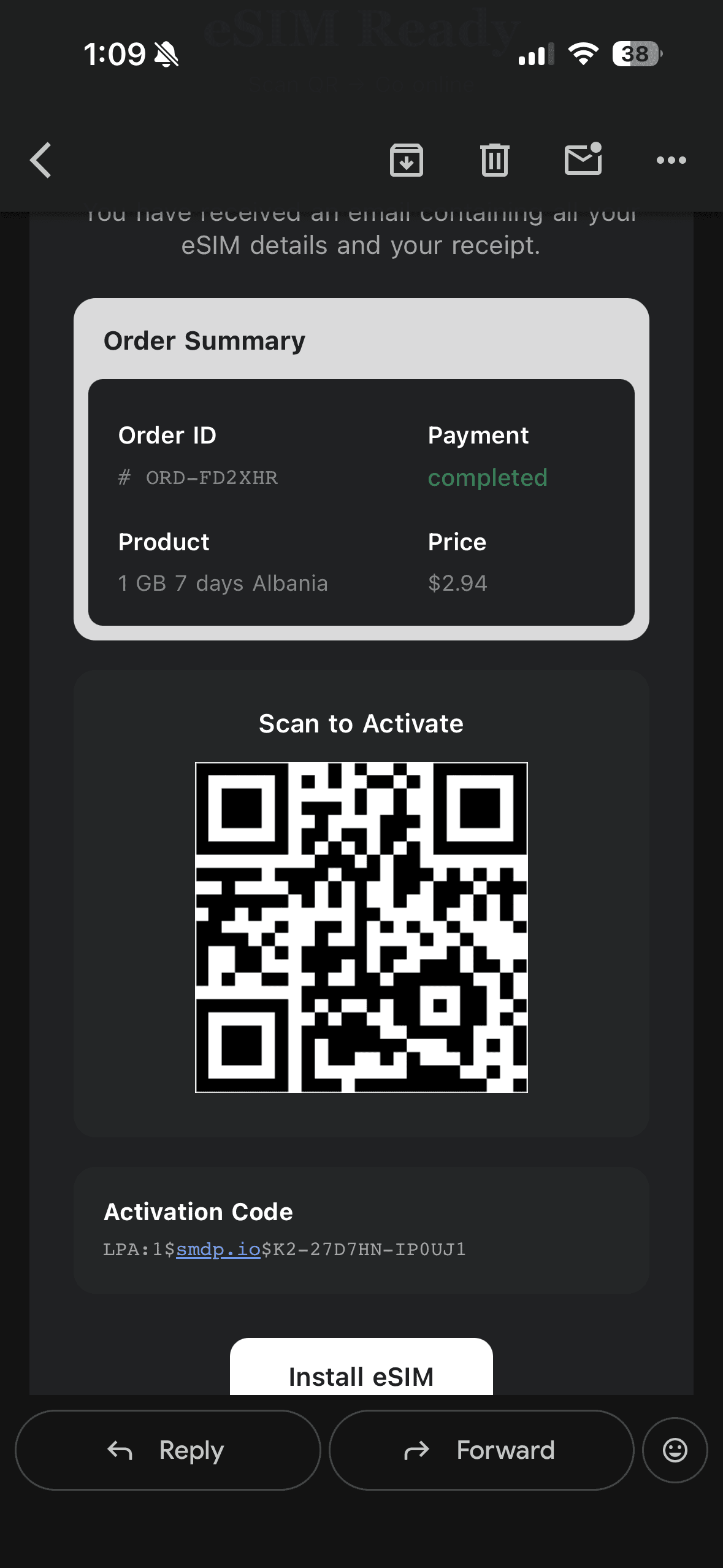
- 1Open your Simplify product email.
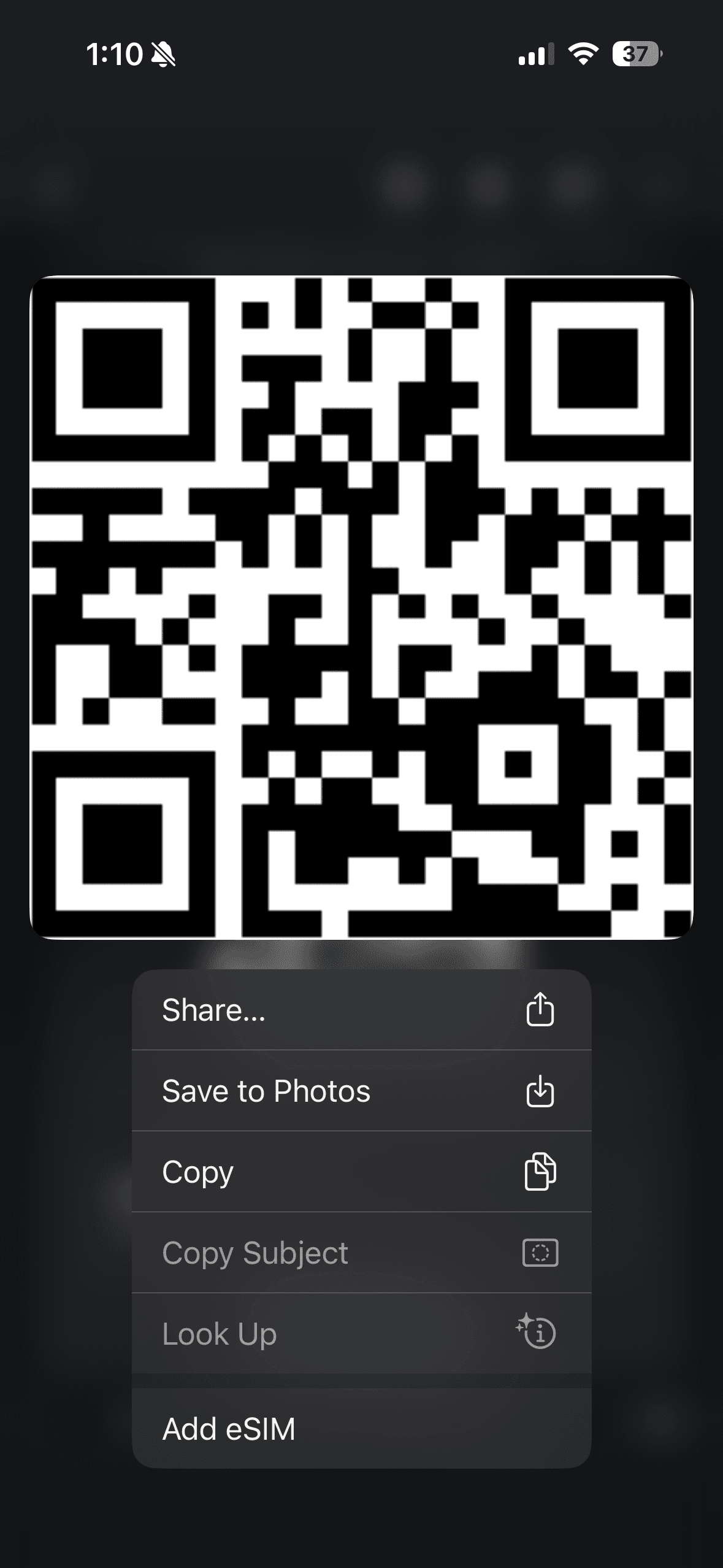
- 2Press and hold the QR code image.
- 3Tap Add eSIM from the menu that appears.
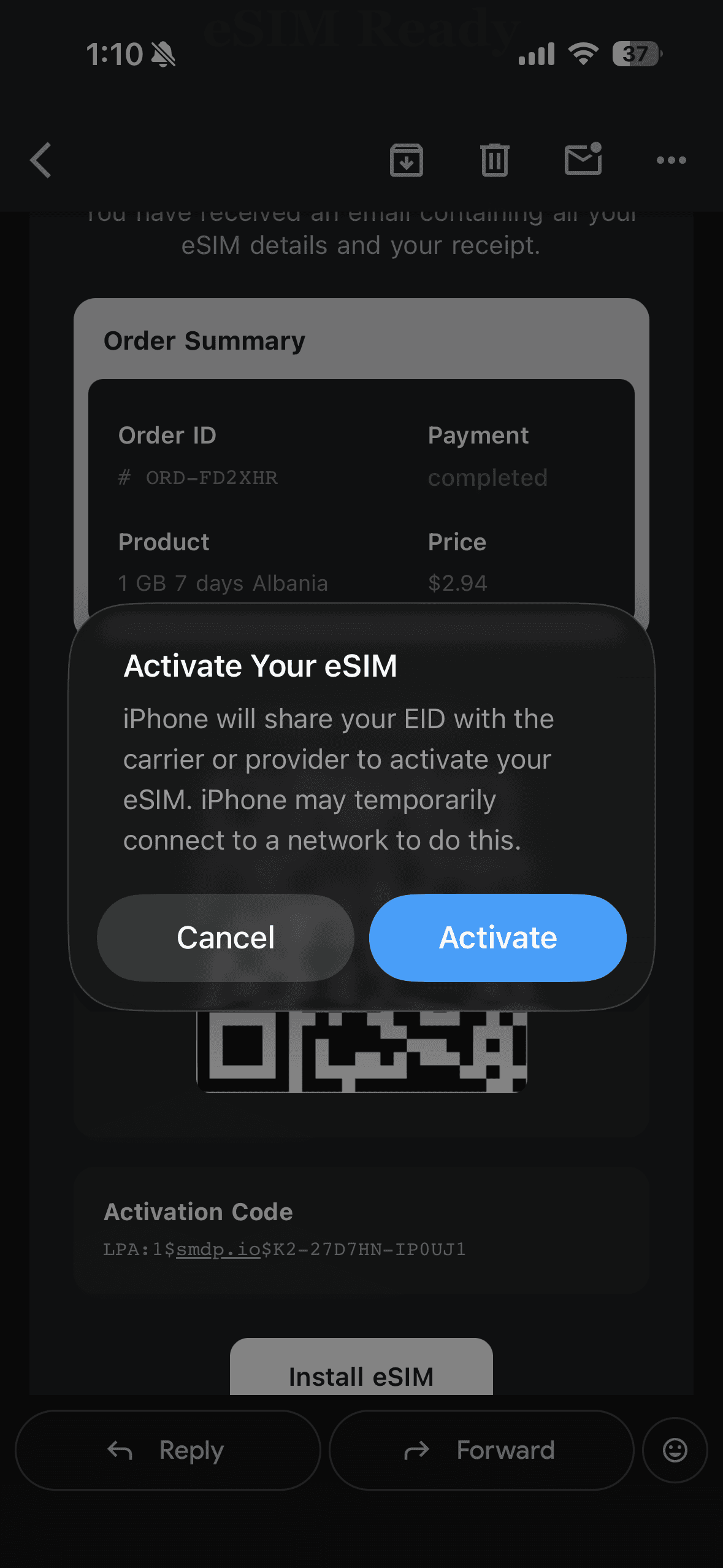
- 4Follow the on-screen prompts to activate.
- 5Choose a label — recommended: Travel eSIM.
- 6Choose Primary as your default line → tap Continue.
- 7Choose Primary for iMessage & FaceTime → tap Continue.
- 8Choose your new Travel eSIM for Cellular Data → tap Continue.
- 9Go to Settings → Cellular → select your Travel eSIM → turn on Data Roaming.
iPhone — Option 2: Scan QR Code
- 1Go to Settings → Cellular/Mobile Data → Add eSIM → Use QR Code.
- 2Hold your camera over the QR code in your email or dashboard to scan it.
- 3Tap Continue twice, wait for activation, then tap Done.
- 4Follow steps 5–9 above.
iPhone — Option 3: Manual Setup
- 1Go to Settings → Cellular/Mobile Data → Add eSIM → Enter Details Manually.
- 2Copy and paste the SM-DP+ Address and Activation Code from your email or dashboard → tap Next → Continue twice → wait for activation → tap Done.
- 3Follow steps 5–9 above.
Need your QR code/details again? Open your order from dashboard.Open Dashboard
Switch to Smart Connectivity Today
Flexible eSIM plans with no contracts or hidden fees—perfect for any journey
Discover Destinations
Contact
Business Name
Innovative Cards Concepts LLC
Support
© 2026 Innovative Cards Concepts LLC. All rights reserved.